How to Optimize Your Checkout Page for Mobile Users
How to Optimize Your Checkout Page for Mobile Users
Mobile checkout problems can prevent customers from completing orders. Learn how to simplify forms, improve payment usability, make guest checkout easier to find, and measure where shoppers drop off.


A customer has found the product they want, added it to their cart, and started checkout on their phone.
Then the problems begin.
The address form is difficult to complete. The shipping cost appears later than expected. A payment error sends them back to a field they can’t easily find.
They were ready to buy, but completing the purchase has become unnecessarily difficult.
Mobile checkout optimization means reducing the obstacles customers encounter when completing a purchase on a smartphone. That includes simplifying forms, making payment options convenient, communicating costs clearly, and ensuring the entire process works on a small screen.
You don’t necessarily need a new checkout design to improve results. First, identify where customers struggle and whether your current checkout makes common tasks harder than they should be.
Why Mobile Checkout Optimization Matters
Mobile shoppers face constraints that aren’t always obvious when you’re reviewing a website on a desktop computer.
Typing takes more effort. The keyboard occupies part of the screen. Customers have less space to review an order, compare shipping options, or understand an error message.
These details matter because checkout requires people to enter information accurately and make decisions before paying.
Baymard Institute’s checkout usability research identifies recurring problems with account creation, form design, delivery information, and error handling.
Some shoppers abandon purchases because they’re still researching or comparing prices. Others leave because they encounter something the store could have handled better.
The second group is where checkout optimization can help.
10 Ways to Improve Your Mobile Checkout Experience
1. Simplify Checkout Forms
Start by reviewing every field customers must complete.
Does your store need that information to process the order, deliver the product, comply with legal requirements, or provide a service the customer requested?
If not, consider removing it.
For most purchases, customers shouldn’t need to enter unnecessary personal details simply to place an order.
Use appropriate form labels and browser autofill support for information such as names, addresses, and payment details.
The web.dev guide to payment forms explains how autocomplete attributes and suitable input modes help browsers present useful autofill suggestions and keyboards.
For example, a phone number field should bring up an appropriate numeric keypad, while an email field should support easy email entry.
Avoid using dropdown menus for information that’s easier to type or select through autocomplete.
Check this yourself: Complete a purchase on your phone without using saved information. Notice how many times you have to switch keyboards, correct an entry, or scroll to understand what a field is asking for.
2. Make Checkout Load and Respond Quickly
A checkout page doesn’t have to be visually complicated to perform poorly.
Payment integrations, tracking scripts, third-party widgets, and unnecessary redirects can affect loading and responsiveness.
A customer may tap a button and receive no immediate feedback. They might tap again, unsure whether the first action worked.
That’s a usability problem worth investigating.
Use Google PageSpeed Insights to identify potential performance issues, but also test the checkout interactions themselves.
Pay attention to what happens when customers update quantities, calculate shipping, apply a discount code, or submit payment.
Optimizing images and removing unnecessary scripts can help, but checkout functionality needs careful testing.
Don’t disable payment or order-processing scripts simply to achieve a better performance score.
3. Offer Convenient Mobile Payment Methods
Entering card details on a phone can be tedious, particularly when customers are shopping away from home or don’t have their information saved.
Digital wallets such as Apple Pay and Google Pay may reduce manual entry for eligible shoppers.
Their availability depends on the customer’s device, browser, payment provider, location, and your store’s configuration.
These payment methods can make checkout more convenient, but availability alone doesn’t guarantee higher conversion rates.
Test the options your customers actually use.
Make sure the payment buttons display correctly, that customers understand which method they’ve selected, and that the final amount is clear.
Also verify what happens when a payment is declined or an authentication step fails.
A convenient payment method is only useful if customers can complete the transaction reliably.
4. Make the Next Action Clear
Checkout buttons should tell customers what will happen when they tap them.
For example, “Continue to Payment” is appropriate when the customer still needs to choose a payment method.
“Place Order” is more appropriate when the next action submits the purchase.
Avoid using a final-sounding label if another step follows.
The button should be easy to distinguish from secondary actions such as applying a coupon, editing an address, or returning to the cart.
On mobile, size and spacing matter.
Customers shouldn’t have to carefully position a finger between closely packed buttons to avoid selecting the wrong action.
Make the primary button visible without making everything else difficult to use.
5. Design for the Actual Mobile Screen
Responsive design allows a website to adapt to different screen sizes.
But a checkout that technically fits on a phone can still be frustrating.
Test the page with the on-screen keyboard open.
Can customers still see the field they’re editing? Are error messages visible? Can they scroll naturally between fields?
Avoid layouts that require horizontal scrolling.
Make form labels easy to understand without relying on instructions located several screens above.
Also check whether sticky headers, chat widgets, or promotional banners cover checkout controls.
A floating support widget may seem helpful until it blocks the payment button.
When evaluating your checkout, use real devices when possible rather than relying entirely on a desktop browser’s mobile preview.
6. Make Security and Costs Clear
Customers need to trust that the store can handle their payment information appropriately.
Use HTTPS and a properly configured payment provider that supports the security requirements relevant to your store.
Avoid suggesting that decorative trust badges alone make a checkout secure.
Security claims should be accurate, and third-party seals should only be displayed when you’re authorized to use them.
Customers also need clear information about what they’re paying.
Show product totals, discounts, shipping charges, taxes, and the final amount at the appropriate points in checkout.
If a shipping charge can’t be calculated until the customer provides an address, communicate that clearly.
Surprising customers with substantial costs at the last step gives them a reason to reconsider the purchase.
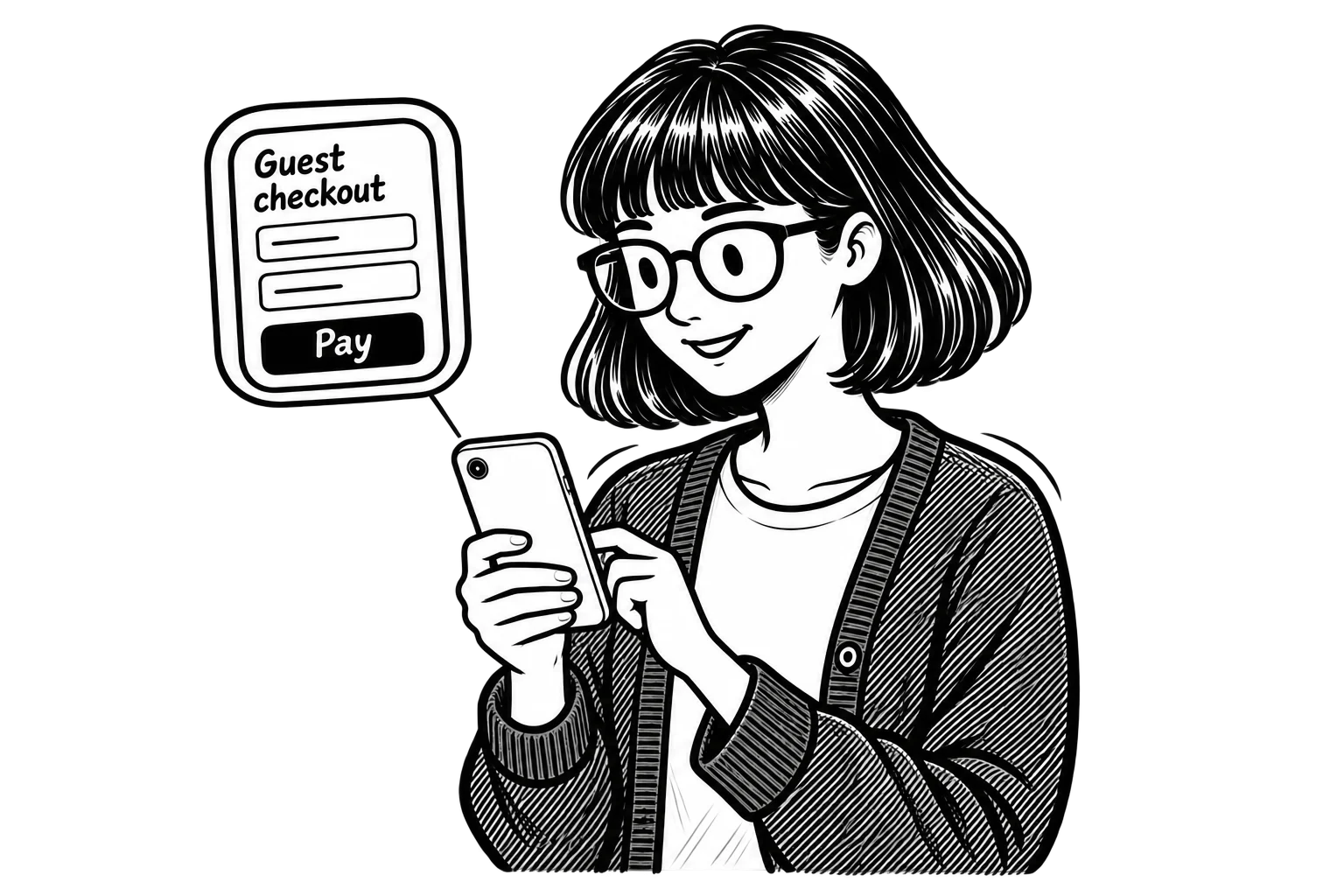
7. Make Guest Checkout Easy to Find
Mandatory account creation creates an additional requirement for customers who may only want to make one purchase.
For stores that don’t require membership or an account for the product being sold, guest checkout is worth offering.
But simply making it available isn’t enough.
Baymard’s research on guest checkout shows that customers can overlook the option when it’s presented as a minor text link or placed beneath more prominent account-registration elements.
On a small screen, that problem can become even more noticeable.
Use a clear label such as “Continue as Guest” and make the option easy to find near the beginning of checkout.
Returning customers should still be able to sign in.
If creating an account would be useful for future orders, consider offering that opportunity after purchase instead of making it a condition of buying.
8. Show Progress Without Adding Clutter
When a checkout has several steps, customers should understand where they are in the process.
A simple indicator can help distinguish shipping information, payment, and order review.
However, a progress bar isn’t automatically necessary.
If the entire checkout uses a single clear page, adding a large progress component could occupy valuable screen space without helping anyone.
The important thing is making expectations clear.
Customers should know whether they’re about to submit the final order or continue to another step.
They should also be able to review important details before paying, including delivery information and the order total.
Avoid adding artificial steps solely to create a tidy-looking progress indicator.
9. Test the Checkout and Review Where Users Leave
A checkout that works correctly today may develop problems after a payment gateway update, a theme change, or a new plugin installation.
Test the complete purchasing process periodically.
Include common scenarios such as:
- A first-time customer using guest checkout.
- A returning customer signing in.
- A customer applying a valid or invalid coupon.
- A payment that fails and needs to be retried.
- A customer correcting an address or changing a delivery option.
Testing is useful, but analytics can help show how widespread a problem may be.
If your store uses Google Analytics 4, confirm that ecommerce events are implemented correctly.
Google’s ecommerce measurement documentation includes events for starting checkout, submitting shipping and payment information, and completing a purchase.
Those events can help identify stages worth investigating.
They won’t tell you every reason a visitor left, which is why usability testing and customer feedback remain important.
10. Keep the Purchase Button Visible When It Matters
The final purchase button should be easy to locate.
That doesn’t mean it must remain fixed at the bottom of the screen throughout checkout.
Sticky buttons can be useful in some mobile layouts, particularly when a long order summary separates the final action from the rest of the form.
But they can also create problems.
A fixed button might cover an error message, overlap an input field, or make the visible area too crowded when the keyboard opens.
Before adding one, test the design at different screen sizes and with the keyboard active.
If the button is already easy to find at the appropriate point in the process, a sticky version may offer little benefit.
The right solution is the one that helps customers complete checkout without getting in their way.
How to Find Out What’s Hurting Mobile Checkout Conversions
Once the basic usability issues are addressed, look at your own store data.
A useful starting point is comparing mobile visitors who begin checkout with those who complete a purchase.
In GA4, the begin_checkout and purchase events can help you examine this progression when ecommerce tracking has been implemented and validated.
Depending on your configuration, add_shipping_info and add_payment_info may provide additional detail.
If many customers begin checkout but relatively few complete it, investigate the steps between those events.
However, don’t assume every missing purchase represents a technical failure.
Some shoppers change their minds, don’t qualify for a promotion, or decide the final price isn’t right for them.
Look for patterns by device, browser, payment method, and traffic source where you have enough reliable data.
Then compare the results with support messages, transaction errors, and actual usability testing.
Prioritize Problems Before Redesigning
Suppose you identify two issues.
First, the order summary requires slightly more scrolling than you’d like.
Second, customers using a particular mobile browser encounter a payment error.
The payment problem deserves immediate attention.
Likewise, a broken address form should take priority over changing the color of the checkout button.
Focus on failures that prevent purchases before testing visual refinements.
For broader ecommerce issues beyond checkout, read Top e-Commerce Mistakes and How to Avoid Them.
Improve Mobile Checkout One Problem at a Time
Mobile checkout optimization works best when you start with evidence.
Review how customers enter information, understand costs, select payment methods, and complete orders on their phones.
Check for technical failures, unnecessary form fields, and confusing instructions.
Then use your store’s analytics and transaction data to decide which problems deserve attention first.
You may find that a relatively small correction removes a serious obstacle. Other issues may require changes to your checkout configuration or platform.
If your current ecommerce checkout is difficult to maintain or has recurring usability problems, MoDuet’s website development services can help assess the purchasing experience and identify practical improvements.
A checkout should make completing an order straightforward. Your customers have already decided to shop. The last thing they need is a website that makes paying harder.