Share this article

Managing a WordPress website often means collaborating with other people. Whether you’re working with a web developer, content writer, SEO specialist, or marketing team, WordPress makes it easy to add new users with custom permission levels.
In this guide, you’ll learn how to add a new user to WordPress, understand user roles, and follow security best practices to keep your website protected.

Why Add Multiple Users to WordPress?
Adding separate user accounts is much safer than sharing a single login. Each user can have their own permissions based on what they actually need access to.
For example:
- Content writers can create blog posts
- Editors can review and publish content
- Developers can manage plugins and themes
- Administrators can control the entire website
Using role-based permissions improves both security and workflow efficiency.
Step-by-Step: How to Add a New User in WordPress
Adding a new user only takes a few minutes.
Step 1: Log Into Your WordPress Dashboard
Navigate to your website’s admin area:
yourwebsite.com/wp-admin
Enter your administrator credentials to log in.
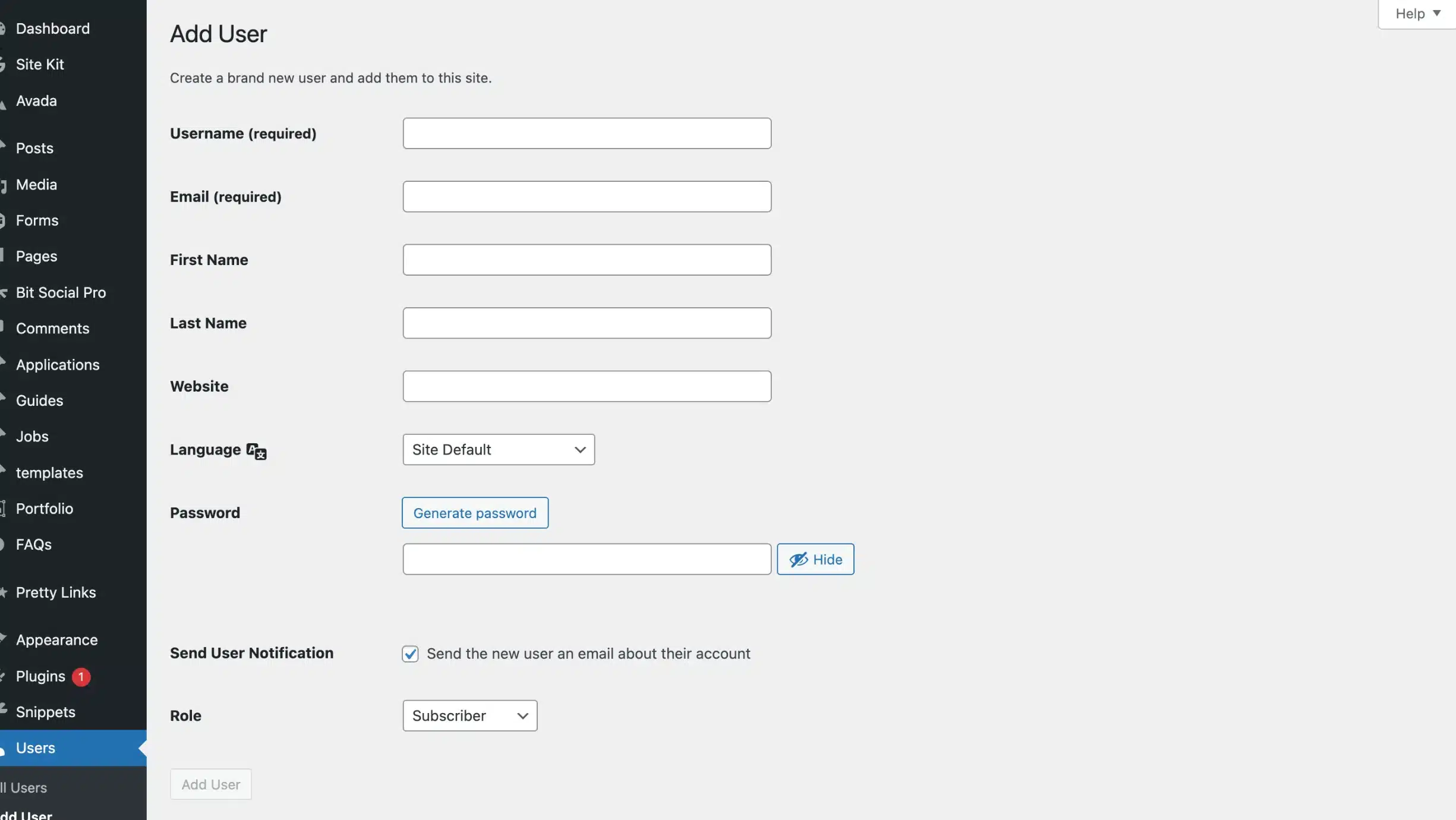
Step 2: Go to Users → Add New
In the left-hand menu of the WordPress dashboard:
- Click Users
- Select Add New
This opens the New User form.
Step 3: Fill Out the User Information
You’ll need to complete the following fields:
- Username — Cannot be changed later
- Email Address — Used for login and password recovery
- First Name & Last Name — Optional but recommended
- Website — Optional
WordPress will automatically generate a strong password for the new user.
For security reasons, it’s best to use the generated password instead of creating a simple one manually.
Understanding WordPress User Roles
Choosing the correct role is one of the most important parts of adding a new user.
Administrator
Administrators have full access to the website, including:
- Plugins
- Themes
- Settings
- User management
Only assign this role to trusted team members.
Editor
Editors can:
- Publish and manage all posts
- Edit pages
- Moderate comments
This role is ideal for content managers or marketing teams.
Author
Authors can:
- Create
- Edit
- Publish their own posts
They cannot edit content created by others.
Contributor
Contributors can write posts but cannot publish them without approval.
This is useful for guest bloggers or freelance writers.
Subscriber
Subscribers have limited access and are mainly used for membership sites or customer accounts.
Step 4: Send Login Information
Before creating the account, check the box labeled:
“Send User Notification”
This sends the new user an email with login instructions and a password setup link.
Then click:
Add New User
Your new WordPress user account is now active.
WordPress User Security Best Practices
When adding users to WordPress, security should always be a priority.
Follow the Principle of Least Privilege
Only give users the minimum access they need to perform their tasks.
For example:
- Writers usually only need Author access
- SEO teams often only need Editor permissions
- Developers may need Administrator access temporarily
Use Strong Passwords
Weak passwords are one of the biggest security risks for WordPress websites.
Encourage users to:
- Use unique passwords
- Enable two-factor authentication
- Avoid sharing credentials
Remove Old Accounts
Delete inactive users or old contractor accounts as soon as they are no longer needed.
Unused accounts can become security vulnerabilities.
Troubleshooting Common Issues
You Can’t Add New Users
If the “Add New” option is missing, your account likely does not have Administrator privileges.
User Never Received the Email
Check the spam folder first. If emails still aren’t arriving, your website may need SMTP email configuration.
Unsure Which Role to Assign?
When in doubt, choose a lower-permission role first. You can always increase permissions later if needed.
Final Thoughts
Adding new users to WordPress is simple, but assigning the correct permissions is critical for website security and smooth collaboration.
By using proper user roles and following WordPress security best practices, you can safely manage teams, freelancers, and clients without putting your website at risk.
Need help managing your WordPress website, improving SEO, or optimizing your digital marketing strategy? The team at MoDuet can help you build a faster, more secure, and growth-focused online presence.
We Want To Talk To You About Your Marketing Goals.
Let’s Supercharge Your Online Growth!
By submitting the form, you agree to the Terms of Service and Privacy Policy
We Want To Talk To You About Your Marketing Goals.
Let’s Supercharge Your Online Growth!