
How to Create and Customize a WordPress Navigation Menu
How to Create and Customize a WordPress Navigation Menu
Learn how to create, organize, and customize a WordPress navigation menu using the classic menu editor or Site Editor, including dropdowns, mobile settings, styling, and troubleshooting.

Your website navigation helps visitors understand where to go, what your business offers, and how your content is organized.
WordPress gives you several ways to create and manage menus depending on your theme. Some websites still use the classic menu editor, while newer block-based themes use the Site Editor and Navigation block.
This guide walks through both approaches, along with dropdown menus, styling options, mobile navigation, and common troubleshooting issues.
What Is a WordPress Navigation Menu?
A WordPress navigation menu is a collection of links that helps visitors move through your website.
Menus commonly include links to:
- Pages
- Blog posts
- Categories
- Custom links
- Product pages
- Contact pages
They may appear in your:
- Header
- Footer
- Sidebar
- Mobile navigation
A good menu should be easy to scan, prioritize important pages, and avoid unnecessary complexity.
How to Create a Navigation Menu in WordPress
The exact process depends on the type of WordPress theme you are using.
Option 1: Use the Classic Menu Editor
If your theme supports the traditional menu system:
- Log in to your WordPress dashboard.
- Go to Appearance → Menus. Save
- Click Create a New Menu.
- Give your menu a name.
- Add the pages, posts, categories, or custom links you want to include.
- Drag and drop items into the order you want.
- Assign the menu to a display location.
- Click Save Menu.
Common menu locations may include:
- Primary Menu
- Header Menu
- Footer Menu
- Mobile Menu
Creating the menu does not always automatically display it. Make sure it is assigned to the correct theme location.
Option 2: Use the Site Editor
Newer block-based WordPress themes may use the Site Editor instead of the classic menu screen.
To edit navigation:
- Go to Appearance → Editor.
- Open the template or template part that contains your navigation, such as the header.
- Select the Navigation block.
- Add links or select an existing menu.
- Rearrange items as needed.
- Save your changes.
The Site Editor also gives you additional control over navigation styling and layout.
How to Add Pages and Links to Your Menu
Depending on the editor you are using, your menu can include several types of content.
Common options include:
- Pages
- Posts
- Categories
- Custom URLs
- Product pages
- External links
In the classic menu editor, select the items you want and click Add to Menu.
You can then drag them into your preferred order.
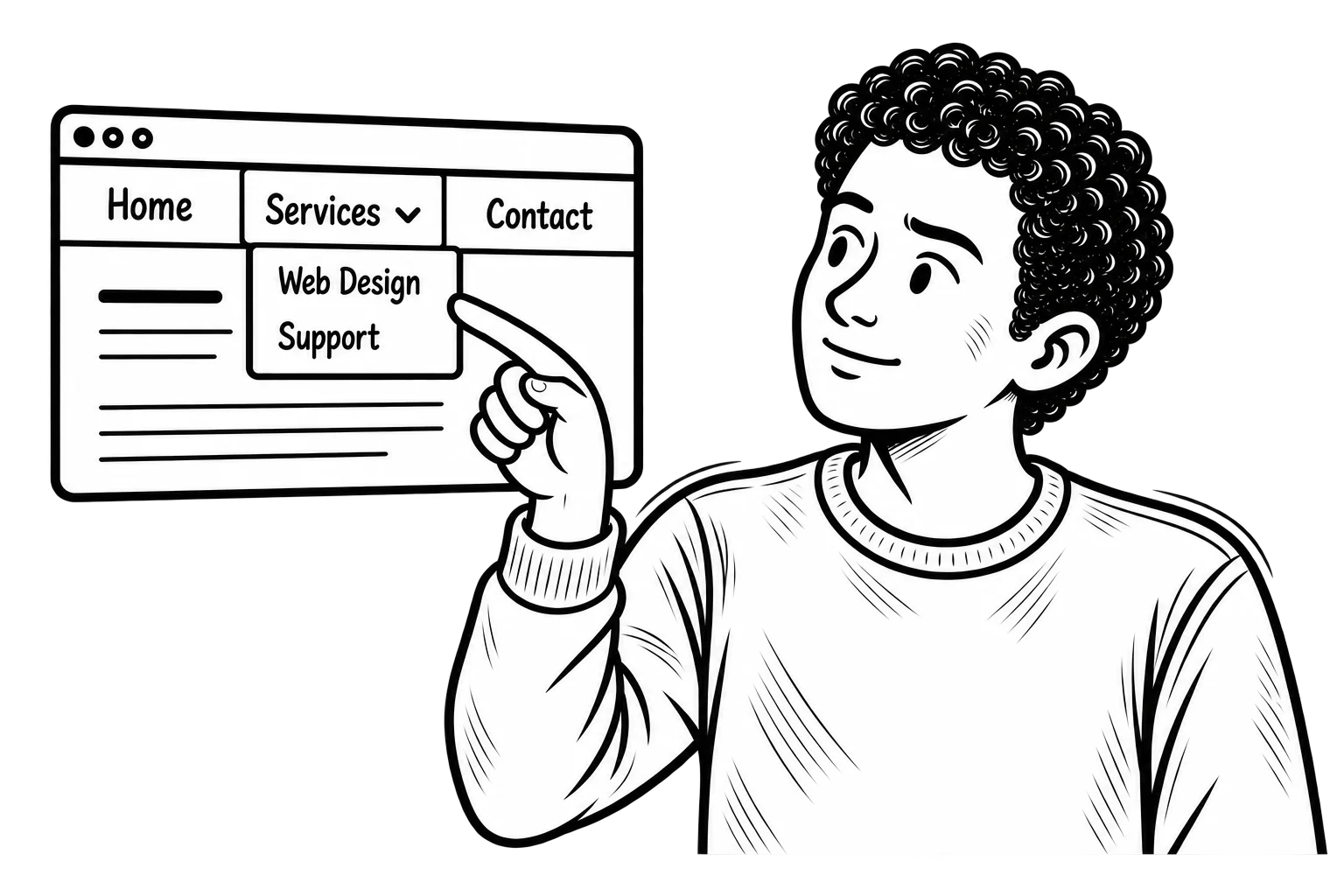
How to Create Dropdown Menus and Sub-Items
Dropdown menus are useful when you need to group related pages without overcrowding the main navigation.
For example:
- Services
- Web Design
- SEO
- Digital Marketing
In the classic menu editor:
- Add the items to your menu.
- Drag the item you want to make a submenu slightly to the right underneath its parent item.
- Save the menu.
The indented item becomes a child or submenu item.
WordPress also supports multiple levels of nested navigation, although keeping dropdown structures relatively simple is usually easier for visitors to use.
How to Customize Your WordPress Menu Design
Your styling options depend heavily on your WordPress theme.
Customize Colors and Typography
If you are using a block-based theme:
- Go to Appearance → Editor.
- Select the Navigation block.
- Review the available design settings.
Depending on the theme, you may be able to adjust:
- Text color
- Background color
- Typography
- Spacing
- Layout
- Alignment
Classic themes may provide similar options through the Customizer or theme settings.
Customize Your Mobile Menu
Many WordPress themes automatically change the primary navigation into a mobile menu on smaller screens.
Depending on your theme, you may be able to control:
- Menu alignment
- Dropdown behavior
- Overlay style
- Mobile menu layout
- Navigation interactions
Always test your navigation on smaller screens after making changes.
A menu that works well on desktop can still become difficult to use on mobile if labels are too long, dropdowns are too deep, or important links are difficult to reach.
Use Custom CSS for Advanced Menu Styling
Some themes allow you to assign CSS classes to individual menu items.
This can be useful when you want to:
- Highlight a call-to-action
- Style one menu item differently
- Add hover effects
- Create custom dropdown styles
Custom CSS gives you more control, but it should be used carefully so future theme or design changes do not create unnecessary maintenance problems.
Best Practices for WordPress Navigation Menus
Keep Your Primary Navigation Focused
Avoid filling the main menu with every page on the website.
Prioritize the pages visitors are most likely to need.
Use Clear Menu Labels
Menu labels should tell people what they will find.
Simple, descriptive wording is usually better than vague or clever labels.
Limit Dropdown Depth
Too many nested levels can make navigation difficult, especially on mobile devices.
Use dropdowns to organize information, not to recreate your entire sitemap inside the header.
Prioritize Important Pages
Your most important pages should be easy to reach.
Depending on the website, that might include:
- Services
- Products
- Pricing
- About
- Contact
Make Sure the Menu Works on Mobile
Check how the menu behaves on phones and tablets.
Make sure users can easily open the menu, access dropdowns, and tap the links they need.
How Navigation Can Support SEO
Your navigation also helps establish relationships between pages.
Clear site structure and internal linking can help search engines understand which pages are important and how your content is organized.
That does not mean you should add keywords to every menu label.
The first priority should still be clarity for the visitor.
A clean navigation structure that connects important pages logically can support both usability and search visibility.
Common WordPress Menu Problems
Your Menu Is Not Showing
Check that:
- The menu is assigned to the correct location.
- The pages you added are published.
- Your theme supports that menu area.
- Your changes were saved.
- Your site cache has been cleared.
Your Dropdown Menu Is Not Working
Make sure the submenu items are correctly nested under the parent item.
Theme settings can also affect how dropdown navigation behaves.
Your Changes Are Not Appearing
Try:
- Refreshing the browser.
- Clearing the website cache.
- Clearing CDN cache if applicable.
- Confirming that you edited the correct menu.
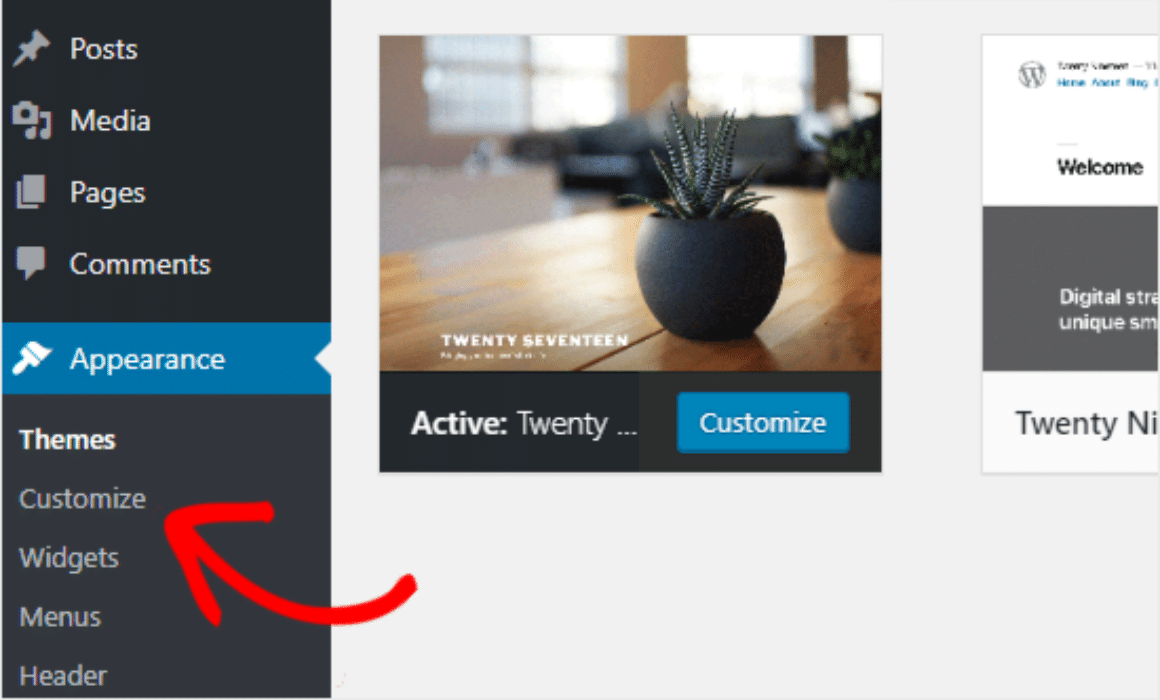
You Cannot Find the Customize Option
Some newer WordPress themes use the Site Editor instead of the traditional Customizer.
If you see Appearance → Editor instead of Appearance → Customize, your theme may be using the newer block-based editing system.
Final Thoughts
A WordPress navigation menu may seem like a small part of your website, but it plays an important role in usability, site structure, and how easily visitors can reach important content.
Start with a simple structure.
Use clear labels.
Add dropdowns only when they improve organization.
Make sure the menu works well on mobile.
Then use your theme’s styling options to make the navigation fit naturally with the rest of your website.